Thursday, March 17, 2016

MuleSoft Application Development: Introduction To DevKit Connector

Introduction

The main purpose of this article is demonstrate the procedures to develop a custom Anypoint platform connector. It is a practical example for advance MuleSoft developers, given that he/she understand the Java annotations, Maven project, and have the essential skills for Mule application development.

    As an MuleSoft integration architect or developer, you will have many situations where you found the existing connectors are broken. This may be the connector has not been updated for the new version of database, such as Cassandra, MongoDB, etc. In this case, you need to fix the problem in order to perform your development tasks. In other cases, there may not be any existing connectors available for your development. Thus, we need to develop our own connectors. Fortunately, MuleSoft's AnyPoint Platform makes this kind of task simple by providing a DevKit.

   This post is an introduction to the Anypoint DevKit Connector development, i. e. HelloWorldConnector. For details, you may refer to the MuleSoft document

Install DevKit

Here is the reference for setting up development environment for MuleSoft DevKit: https://docs.mulesoft.com/anypoint-connector-devkit/v/3.7/setting-up-your-dev-environment If you have installed the MuleSoft DevKit correctly, you can check by New --> Other --> expand Mule. You should see the following:
This means you are ready to develop MuleSoft DevKit Connectors.

Custom Connector Development

Create Project

New --> Other --> Anypoint Connector Project:
Choose JDK Based (default) --> Next
Check Generate Tests. For now, let's not keep things simple without checking the data sense. Click Finish. Now, AnyPoint Studio creates the basic project for us as the following:
Actually, this project contains all the basics about connector. I will explain the details later. For now, let us put the connector into action.

Run The Functional Test

Open the RunctionalTestSuite, and run the Junit test: You will see the following error:
ERROR 2016-03-17 11:25:31,397 [main] org.mule.tools.devkit.ctf.configuration.ConfigurationManager: No M2HOME was set and M2Home autodetection did not detect your M2 home. You can either set the M2HOME/M2_HOME environment variable or specify the System property with -Dm2home=yourM2Home (VM Arguments, System Properties or Maven Properties).

We can fix this by setup the test configuration:
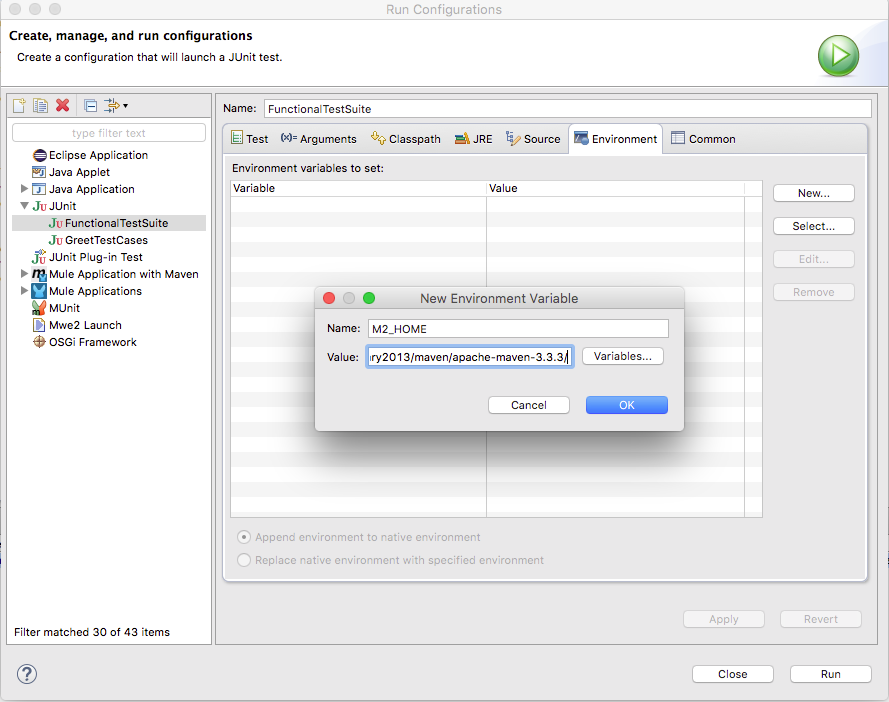
By adding the M2_HOME variable and point to our Maven Installation Hoome, the test can start. But it will fail the testing. We need to fix the test methods in GreetTestCase.java. By adding the changeing lines 29 and 30 with the following:

	
	@Test
	public void verify() {
		java.lang.String expected = "Hello Gary Liu. How are you?";
		java.lang.String friend = "Gary Liu";
		assertEquals(getConnector().greet(friend), expected);
	}

}

Now are ready to package the connector.

Packaging

cd ${WORK_SPACE}
cd simple-jdk-hello-world-connector/
mvn clean package


Gary2013@Guojiangs-MBP:~/tcc-dev/poc/simple-jdk-hello-world-connector$ ls -lart target
total 1400
drwxr-xr-x  18 Gary2013  staff   612B Mar 17 11:43 ../
drwxr-xr-x   3 Gary2013  staff   102B Mar 17 11:43 connector-model/
drwxr-xr-x   4 Gary2013  staff   136B Mar 17 11:43 test-classes/
-rw-r--r--   1 Gary2013  staff    32K Mar 17 11:43 simple-jdk-hello-world-connector-1.0.0-SNAPSHOT-sources.jar
drwxr-xr-x   3 Gary2013  staff   102B Mar 17 11:43 maven-status/
drwxr-xr-x   3 Gary2013  staff   102B Mar 17 11:43 maven-archiver/
drwxr-xr-x   3 Gary2013  staff   102B Mar 17 11:43 generated-test-sources/
drwxr-xr-x   4 Gary2013  staff   136B Mar 17 11:43 generated-sources/
drwxr-xr-x  10 Gary2013  staff   340B Mar 17 11:43 classes/
-rw-r--r--   1 Gary2013  staff   140K Mar 17 11:43 simple-jdk-hello-world-connector-1.0.0-SNAPSHOT.zip
-rw-r--r--   1 Gary2013  staff   172K Mar 17 11:43 simple-jdk-hello-world-connector-1.0.0-SNAPSHOT.jar
-rw-r--r--   1 Gary2013  staff    38K Mar 17 11:43 original-simple-jdk-hello-world-connector-1.0.0-SNAPSHOT.jar
drwxr-xr-x   6 Gary2013  staff   204B Mar 17 11:43 update-site/
-rw-r--r--   1 Gary2013  staff   313K Mar 17 11:43 UpdateSite.zip
drwxr-xr-x  15 Gary2013  staff   510B Mar 17 11:43 ./

You can see we create 2 zip files. We are going to install the file UpdateSite.zip into our Anypoint Studio.

Install Custom DevKit Connector

Help --> Install New Software --> Add


After few clicks, Anypoint Studio will install the newly created HelloWorld Connector. We will nedd to restart the studio.  

Now, we are ready to test our newly created Hello World connector.

Testing DevKit Connector

Now, let's create new Mule project name: use-hello-world and create a simple flow as the following:


Now if you look the Mule paletter you should see a new connector "SimpleJDKHelloWorld" as shown in the following figure: 


Awesome!

Now, let's do some testing. Drag and drop the SimpleJDKHelloWorld Connect to the flow of "use-simple-jdk-hello-world_Flow":

Now you can configure the connector as HTTP connector as shown below:


You can complete the rest configuration by the following:


Your final flow may looks like the following:


Now, you can perform same testing as the following:


That is all! It is fairly straight forward, at least from the starting point of view. Of course, this is just starting point of the journey. The development of enterprise grade connector takes huge effort, in particular, if you add data sense, connection management, security, etc.

Key Learning Points

In this demo, we have learned the procedures of:

  1. creating DevKit Connector project from scratch
  2. functional testing of the connector
  3. install the customer connector
There are few other technical aspects we have not touched yet. These are DevKit Connector related annotations such as
  • @Connector
  • @Processor
  • @Config
  • @Configuration
  • @Configurable

References


  1. General: https://docs.mulesoft.com/anypoint-connector-devkit/v/3.7/
  2. Setup Development Environment : https://docs.mulesoft.com/anypoint-connector-devkit/v/3.7/setting-up-your-dev-environment
  3. Tutorial: https://mulesoft.github.io/mule-cookbook-tutorial/

Friday, March 11, 2016

MuleSoft Application Development With JMS Queue Explained: Part Three

Introduction

In my last post, I covered the configuration of request-reply pattern. This can also achieve by using the request-reply scope

The Configuration

The XML file is listed as the following:


This approach is clearly defined which queue the reply will be stored, instead of using unnamed temporary queue. In terms of clarity, this is better approach. However, in the clustering environment, this may be problematic. This needs to be confirmed with MuleSoft.

MuleSoft Application Development With JMS Queue Explained: Part Two

Introduction

In the first part, I have covered the basic setup of mule flows using queues to publish and consume JMS messages. In this part, I will cover request-response exchange pattern. Basically we want to publish a message to a JMS queue and then wait for reply from the consumer. The details about how this can be achieved using Java are clearly described at this article
http://activemq.apache.org/how-should-i-implement-request-response-with-jms.html

The Message Producer Configuration

The mule configuration for JMS endpoints has the exchange pattern of one-way or request-response. Check the request-response button as show in the figure below:
The XML configuration looks like the following:
        

Mule Flow Configuration

In order to demonstrate the request-response pattern, I created two flows, as shown in the following figure:
The corresponding XML configuration is listed as the following:


JMS Correlation ID

To set the correlation ID is critical to the request-response exchange pattern. Without this, the pattern will not work. Here is the how we can set the correlation ID:
        

MuleSoft Application Development With JMS Queue Explained: Part One

Introduction

This article has two parts. This is the first part. In this part, I will demonstrate how to setup the basic flow, which involves jms inbound and outpoint points. In the mule flow, JMS the outbound-endpoint is the message producer. On the other hand, the JMS inbound-endpoint is the message consumer. The key concepts covered in this article are the following:
  • How to set JMS properties in Mule flow
  • How to configure ActiveMQ connectors
  • How to configure JMS inbound- and outbound-endpoints
For JMS, Mule support one-way and request-response exchange patterns. This part covers the one-way exchange pattern. The next part will cover the request response pattern.

ActiveMQ Connector Setup

In the Mule integration with JMS brokers like ActiveMQ, the first step is to configure the JMS connector as show the following figure.
The general tab as shown in the next figure has the connector name, brokerurl, and access to ActiveMQ credentials.
You should also pay attention to the Advanced tab. In this tab, you can configure JNDI, durable consumer, or define the PERSISTENT delivery mode, etc.. Mule has default values for all these advanced configuration.
If you want to change the delivery mode from NON-PERSISTENT to PERSISTENT, you will need to check the persistence delivery. By default, mule create 4 consumers for each queue, you may adjust that value as well accordingly.

Configure The Mule Flow With One-Way Exchange Pattern

The main purpose of this basic configuration is to demonstrate how to build mule flows to publish and consume jms message. Another point I want to make is that how Mule set the outpond properties to JMS properties.

The Use Case

  • A client will invoke a RESTful service
  • The client will send a JSON Payload
  • ESB will perform the following:
    1. transform the json to java LinkedHashMap
    2. set JMS header source_id
    3. publish the message to a queue
  • A second flow: Process_Order_Flow listen on the order.queue
  • log the payload
  • send the payload to another queue: order.special.queue The json example is provided as the following:
    { "name"   : "John Smith",
      "sku"    : "20223",
      "price"  : 23.95,
      "shipTo" : { "name" : "Jane Smith",
                   "address" : "123 Maple Street",
                   "city" : "Pretendville",
                   "state" : "NY",
                   "zip"   : "12345" },
      "billTo" : { "name" : "John Smith",
                   "address" : "123 Maple Street",
                   "city" : "Pretendville",
                   "state" : "NY",
                   "zip"   : "12345" }
    }
    

    Configure The Mule Flow For One-Way

    The Mule Flow Diagram is shown as the following:
    The xml configuration for the flow is listed as the following:


    Message Selector

    We can add jms message selector to either jms inbound-endpoint or outbound-endpoint as shown below. However, it only takes effects on the inbound-endpoint.


    Also, noted that source_id is a JMS message property. Mule copies all the outbound properties to the JMS message properties. The inbound properties are not automatically copied to the outbound properties when the flow crosses the transport boundary. You may be tempted to reply the ATG in the message selector configuration. Unfortunately, this cannot be done, because this is pre-defined in the ActiveMQ broker configuration.

Tuesday, February 2, 2016

Install Salesforce Plugin to MuleSoft Anypoint Studio

Introduction

Salesforce provides a very useful plugin for Eclipse based IDE. Nowadays, I work a lot of cases for salesforce integration using Mule Anypoint Studio. This article describe the procedures for installation and usage.

Install Force.com Plugin

Help -> Install New Software Enter the following to as show in the Figure: salesforce plugin - http://media.developerforce.com/force-ide/eclipse42
After installation, you should check if the plugin is installed by Help -> Installation Details

Create force.com Project

In order to review the Salesforce data, we need to create force.com project. New -> Other
Enter credentials of the targeted Salesforce environment:
The project will be created. What I am interested most of the times is about to query the Salesforce.
You can write sql like query to check the data in the salesforce, or you can check the schema.

Tuesday, December 22, 2015

Grant A Group Users Sudo Access

Useful Linux Commands

Grant A Group Users Sudo Access

  • vi /etc/sudoers
  • copy / paste the line with #%wheel
  • Change the wheel with your user group, say, mule is a user group in my case

Wednesday, October 28, 2015

How Send Cookie Using Postman or Curl

Using Curl

Here is an simple example about to send json message with a cookie.
curl -X POST 
-d @input2.json 
--cookie "portalOpenSSOToken=sso-token-1" 
--header "Content-Type: application/json"  
http://localhost:8080/caweb/api/seatRevenueByAgency 

Using Postman

To use postman, we need to install inteceptor. Then you need to turn on the interceptor as shown in the following feature.

Anypoint Studio Error: The project is missing Munit lIbrary to run tests

Anypoint Studio 7.9 has a bug. Even if we following the article: https://help.mulesoft.com/s/article/The-project-is-missing-MUnit-libraries-...