Sunday, May 13, 2018

Mule Application Dev: Email Notification With Apache Velocity Engine

Introduction

It is very common to send email notification for important event in the enterprise integration. Mule AnyPoint Platform come with parse-template component, which allow us to pass flow variables, payload, etc to the html template. This approach is very simple and straight forward for the simple email notification. The another approach is to using apache velocity engine to parse more complicated data set to the html template.

In this post, I am going to introduce the both. For the email server, I am going to using Gmail.

The complete code is available at my github repository

The Requirements

The requirement is that clients will pass a json request contains the informaiton as shown in the following:


{
 "subject": "Connection To Oracle Database Not Available",
 "emailTo": "gary.liu1119@gmail.com",
 "emailFrom": "guojiang.liu1119@gmail.com",
 "replyTo" : "gary.liu1119@gmail.com",
 "integrationId" : "OracleDB-To-SFDC",
 "body" : "This is the body message",
 "channel" : "slack channel",
 "footer": "This is generated email. Please DO NOT Reply to this email 
 
 Best Regards, 
 Mule Integration Team",
 "payload" : {
  "header" : ["column_a","column_b","column_c","column_d","column_f"],
  "data": [
   ["column_a_data1","column_b_data1","column_c_data1","column_d_data1","column_f_data1"],
   ["column_a_data2","column_b_data2","column_c_data2","column_d_data2","column_f_data2"],
   ["column_a_data3","column_b_data3","column_c_data3","column_d_data3","column_f_data3"]
   
  ]
 } 
}
The resultant email should look like the following:

Using Template Parser

This is very simple scenario. We will use the <parse-template ...=""> component as the following:
        
The html template is in the following form:
<html>
    <head>
      <title>#[original_payload.subject]</title>
    </head>
    <body>
      Environment: #[environment]
      Date: #[system_date]
      Integration Case ID: #[original_payload.integrationId]      
      #[original_payload.body]
     
      #[original_payload.footer]
 
    </body>
</html>
In the above html code, the #[environment] is the same as #[flowVars.environment] The flows for using parse-template are shown in the following diagram:

Using Velocity

Apache Velocity Engine is a powerful tool for build complicated html template. Here I only introduce the for loop. For more directives, you may refer the following document.

The html template is shown as the following:

<HTML>
    <HEAD>
      <TITLE>$emailInfo.subject</TITLE>
    </HEAD>
    <BODY>
      <BR>
      Environment: $emailInfo.environment     
      <BR><BR>
      Integration ID: $emailInfo.integrationId
      <BR/>
      <BR/>      
      $emailInfo.body     
      <BR/><BR/>   
      <TABLE width="70% "border = "1" cellspacing="0" cellpadding="2" font="5">
        <TR style="text-align: left; font-size: 14px; font-weight: bold; color: #000000;">
        
        #foreach ($headerCol in $emailInfo.payload.header)
                <TH>$headerCol</TH>
        #end
        
        </TR>
        
        #foreach ($data in $emailInfo.payload.data)
            <TR style="text-align: left; font-size: 13px; font-weight: bold; color: #488AC7;">          
            #foreach ($col in $data)
                <TD>$col</TD>
            #end            
            </TR>
        #end
      </TABLE>
     
     <BR/>
     <BR/>
      
     <I>$emailInfo.footer</I>
          
 
    </BODY>
</HTML>

As you can see that for loop takes the following form:

        
        #foreach ($headerCol in $emailInfo.payload.header)
              <TH>$headerCol</TH>
        #end

Where the emailInfo is a java object in the form of: LinkedHashMap emailInfo. The whole idea is MVC, Model, View, Control. The html is the view page, the mode is and java object. Control is the engine injecting data to the view.

The java code is in the following form:


public class VelocityComponent implements Callable
{
 private static Logger logger = LoggerFactory.getLogger(VelocityComponent.class);

 @SuppressWarnings("unchecked")
 @Override
 public Object onCall(MuleEventContext eventContext) throws Exception {
  LinkedHashMap payload = (LinkedHashMap)eventContext.getMessage().getPayload();
  String emailHtml = this.buildEmailHtml(payload);
  return emailHtml;
 }
 
    public String buildEmailHtml(LinkedHashMap emailInfo) throws Exception
    {
        VelocityEngine ve = new VelocityEngine();
        ve.setProperty(RuntimeConstants.RESOURCE_LOADER, "classpath");
        ve.setProperty("classpath.resource.loader.class", ClasspathResourceLoader.class.getName());

        ve.init();
        
        String environment = System.getProperty("mule.env");
        
        emailInfo.put("environment", environment);

        VelocityContext context = new VelocityContext();
        context.put("emailInfo", emailInfo);

        Template t = ve.getTemplate("email-notification-template-velocity.vm" );

        StringWriter writer = new StringWriter();

        t.merge( context, writer );

        logger.info( writer.toString() );
        
        return writer.toString();
    }
}

Wednesday, February 21, 2018

Introduction To Mule API Security - Client ID Enforcement

Introduction

In my last article, I have introduced the procedures of creating a simple api and applying basic authentication to mule application. I am going to introduce another simple API security mechansim for mule application - Client ID Enforcement.

Both Basic Authentication and Client ID Enforcement are simple security mechanisms. Combining with Https, they can provide basic security for most applications. Nowadays, oauth2 is more popular security scheme for API security. I will cover that in my later post.

The complete source for this post are available at my github: https://github.com/garyliu1119/api-manager-explained

Setup In Anypoint Platform

First I create a new API project, namely, accounts-manager as shown in the following snapshot:

#%RAML 1.0
title: Account Api
version: 1.0.1
protocols: [ HTTP, HTTPS ]
baseUri: http://esb.ggl-consulting.com/{version}
mediaType: application/json

traits: 
  client-id-required:
      queryParameters:
        client_id:
          type: string
        client_secret:
          type: string
types: 
  Account:
    properties: 
      id: integer
      type: string
      name: string
  Error:
    properties: 
      code: integer
      errorMessage: string

/accounts:
  /{id}:
    get:
      is: [client-id-required]
      description: get an account information by id
      responses: 
        200:
          body: 
            application/json:
              type: Account
              example: { "id": 1234, "name": "Gary Liu", "type": "checking" }

After save the API, we need to publish the API to Exchange. In the exchange, we need to request access. By doing this we get client ID and client secret as shown in the following snapshot:

These client ID and client secrets will be available to the customers who consumes the API. These values can (should) be reset periodically.

To apply security scheme of client id enforcement, we can check the radio button of "Client ID enforcement" as shown below:

The easiest way is take the default configuration of "Custom Expression" as shown below:
That is all we need to do on the Anypoint Platform. Next, I will demonstrate the procedures to setup Mule applications.

Setup In Mule Application

The setup for the Mule application is the same as those shown in the simple security. We need to create a new Autodiscovery component like the following:


Invoke Application

To invoke the application, we need to pass the client_id and client_secret paraters as query parameters as shown in the following snapshots:

Client ID and Secret As Header

In the above section, I have demonstrated the simple way to pass client id and client secret. That is pass the client id and secret as query parameters. Apparently, this is not secure. The alternative is to pass the encrypted client id and secret as headers. The configuration is shown as the following:

There is no changes on application. The only change is how the client invoke the application. Consumers will need to invoke the application with the way as shown below:

Summary

In this post, I have demonstrated the procedures to applying security policy of client ID enforcement. There are two ways to do so:
  1. Custom configuration: passing client_id and client_secret as query parameters of headers
  2. Passing client id and secret as base 64 encrpted header
The second approach is recommended as it is more secure.

Monday, February 19, 2018

Introduction To Mule API Security - Simple Authencation

Introduction

This post covers the basic procedures to setup simple Mule API security. I assume that the audience have not knowledge of applying API Security on the Mule AnyPoint Platform. Here are the key take-aways

  1. Write a simple RAML in the Design Center of the Anypoint Platform
  2. Publish the API (RAML) to the Exchange
  3. Using API Manage to apply simple security
  4. Explain the details on how it works

The complete source code are available at my github: https://github.com/garyliu1119/api-manager-explained

Design & Publish API

In the new version of AnyPoint Platform, the api management contains 3 separate areas:

  1. Design Center
  2. Exchange
  3. API Manager

There are many editors we can use to design our API (RAML). I find design center and ATOM are the two most powerful tools. Both are easy to use. For the demo purpose, I use AnyPoint Platform's Design Center. First, create a new project as shown in the snapshot below:

Choose "API Specification", enter project name, then you can write your API in RAML. The details can be found in many documents. The code below is the simplest RAML file for the purpose of demonstrate API security.

#%RAML 1.0
title: Basic Auth API
version: v1
protocols: [ HTTP ]
baseUri: https://mocksvc.mulesoft.com/mocks/09212943-e570-413d-92f6-ef5e634f33cb/{version}  # baseUri: http://esb.ggl-consulting.com/{version}
mediaType: application/json
securitySchemes: 
  basicAuth:
    description: First simple auth
    type: Basic Authentication
    describedBy: 
      headers: 
        Authorization:
          description: Base64-encoded "username:password"
        type: string
      responses: 
        401: 
          description: |
            Unauthorized: username or password or the combination is invalid
types: 
  Account:
    properties: 
      id: integer
      type: string
      name: string
  Error:
    properties: 
      code: integer
      errorMessage: string

/accounts:
  /{id}:
    get:
      description: get an account information by id
      responses: 
        200:
          body: 
            application/json:
              type: Account
              example: { "id": 1234, "name": "Gary Liu", "type": "checking" }

Once the API is completed, we need to published the api to the Exchange. To publish the API to Exchange, refer the snapshot below:

Now, we can view our API in the Exchange as shown in the following snapshot:

Once the API is published to the Exchange, we can go to API Manager to import the API as shown in the following snapshot:

We can view the API as shown in the following snapshots:

By viewing API, we need few important information for the purpose of auto-discovery. The Mule 3, we need "API Name" and "API Version", respectively. For Mule 4, we need API ID.

Setup The AnyPoint Studio

In order to apply the security policy to our local running applications, we need to connect our local runtime with Anypoint Platform. To do so, we need to apply client ID and client secret of our environment to the Anypoint Studio. Firsly, we need to get the client id and client secret: Access Management --> Environment (left panel) --> Environemnt (Sandbox):

Now, go to AnypointStudio, Preference --> Anypoint Platform For Apis --> fill the client id and client secret --> Validate:

Once you validate the client id and client secret, that means our AnypointStudio or the embedded runtime can communicate with the Anypoint Platform.

Apply Security Policy In API Manager

Once the API is imported to the API Manager, we can apply the security policies, SLA Tier, alert, etc. The main purpose of this post is to demo how to apply security policies. I will cover the other area in the later posts. In this case, I plan to apply simple security and Basic Http Authentication as shown in the following snapshot:

When you apply the simple security, the platform will ask for the user name and password. Note down these credentials, we will need them when we perform the http request.

At this point, we have setup the security for the API from administrative side. Now, we need to apply the security policy (user name and password) to our application. I will cover these in the next section.

Apply Security Policy To Mule Application Using Auto Discovery

The key to control application API access is via auto-discovery and communication between API Manager and application. To achieve auto-discovery of the application, or to let api manager control the application access, we need to create an auto-discovery component as shown in the following snapshots:


The apiName and version are from API Manager as shown in the following snapshots:
The apikitRef is our definition of API Router as shown in the following snapshots:


As we can see that the security policy will apply and api passing through the api router, which is referring our API definition of api-manager-explained.raml

Run The Application

To test the security policy applying to our application, we can use PostMan as shown in the following snapshots:

The Authorization is "Basic Auth", the user name and password are shown. PostMan will automatically generate the token which is base64. And PostMan will send Authorization : [{"key":"Authorization","type":"text","name":"Authorization","value":"Basic R2FyeTEyMzQ6R2FyeTEyMzQk"...] to the server.

We can also perform the same using curl. First we need to generate the basic token as the following:

gl17@garyliu17smbp:~$ echo "Gary1234:Gary1234$" | base64
R2FyeTEyMzQ6R2FyeTEyMzQkCg==
gl17@garyliu17smbp:~$ 

Then, we can send the request as the following:

curl -X GET -H "Authorization: Basic R2FyeTEyMzQ6R2FyeTEyMzQk" http://localhost:18081/api/accounts/1234

That is it. Even though it seems pretty complicated, actually this is simplest mechanism.

What Is Under The Hood?

At this point, we may ask ourselves the question: How does it work? How the Anypoint Platform enforce the security policies?

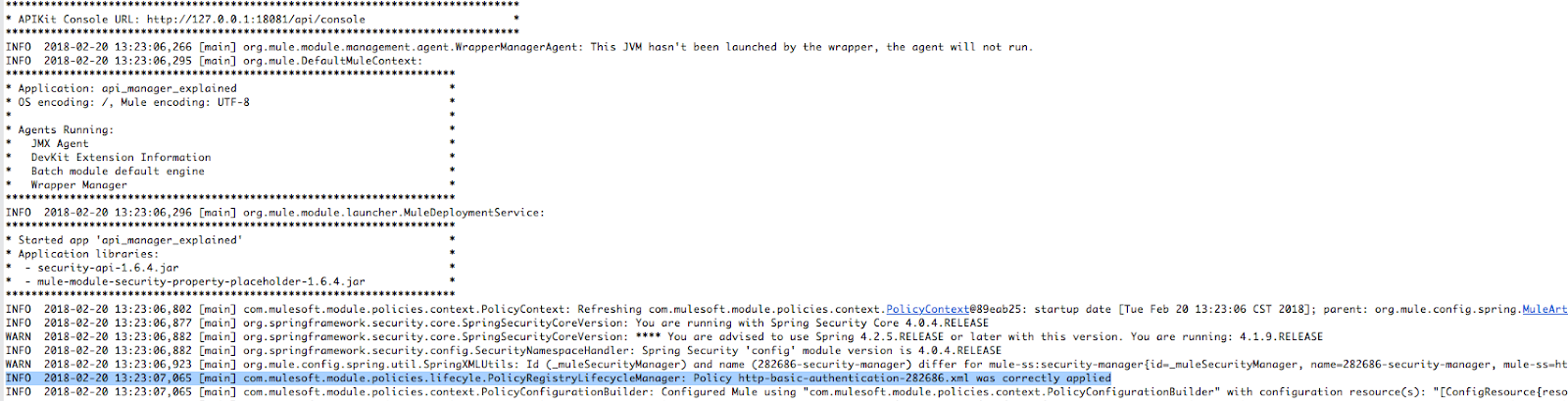
First of all, we noticed that when we run the application in our local, in our console, there are following lines:

The highlighted line showing that the policy has been applied successfully.

In the meantime, there is a file written in our workspace/.mule/http-basic-authentication-282686.xml as shown in the following snapshot:

And the contents of the file are the following:


As you can see, Mule is using spring security. Actually, we can do the exactly same in our mule configuration. Of course, I am not recommending to do so.

Another interesting point should be noted is the network connection. Here is what I can see from my local environment by using the command of lsof:

AnypointS  987 gl17   98u  IPv6 0x3c5bcba541fe6469      0t0  TCP localhost:50687->localhost:6666 (ESTABLISHED)
AnypointS  987 gl17  223u  IPv6 0x3c5bcba541fe9269      0t0  TCP localhost:50681->localhost:50683 (ESTABLISHED)
java      1107 gl17    4u  IPv4 0x3c5bcba53fdc68b1      0t0  TCP localhost:50683->localhost:50681 (ESTABLISHED)
java      1107 gl17  498u  IPv4 0x3c5bcba5417148b1      0t0  TCP localhost:6666->localhost:50687 (ESTABLISHED)
java      1107 gl17  526u  IPv4 0x3c5bcba544131211      0t0  TCP garyliu17smbp.frontierlocal.net:50927->ec2-34-231-107-145.compute-1.amazonaws.com:https (ESTABLISHED)
The last line shows the TCP connection between Anypoint Platform and my local runtime.

Summary

In this post, I have shown the details of setup and applying API security to mule applications. I covered the underneath communication between local runtime and Anypoint Platform. In the following post I will cover client ID enforcement, another simple security mechanisms. At the end of this series, the reader should be able to master the API security related to the mule platform.

Saturday, January 27, 2018

Test API Using Postman 101

Introduction

You can also read this post at DZone

Postman is one of the most efficient application to test RESTful api. Most developers write simple test and check the result of REST API. That is fine for few API, but if we have many api to test. It is better to automate these test cases. This post is an introduction to the automated testing using a simple api. There is command line version of Postman. It is called newman. I will also cover the procedure to test using newman.

The main topic of this post covers:

  • Environment
  • Simple Test Scripts
  • Setup newman
  • Test Collections

Environment And Collections

In general, you should create one testing collection for each functional area, which may have many testing case. Then, you should create environment for dev, test, sit, prod, etc, as each environment may have different configuration.

Simple Test Scripts

For the demonstration purpose, I created two test cases. The first is to get oauth2 token from my local server. The second is to validate the token. To validate the token, I will need to pass the token as query parameters. To copy and paste the token into the query parameters is not practical. In this case, I create and environment variable named: access-token-password in the first test case. And pass this variable to the second test case as the following:

https://localhost:8082/external/validate?access_token={{access-token-password}}
The syntax is self-explanatory.

The following are the details about the test script:

var jsonData = JSON.parse(responseBody);

postman.setGlobalVariable("access_token", jsonData.access_token);

postman.setEnvironmentVariable("access_token", jsonData.access_token, "OATH2");

postman.setEnvironmentVariable("access-token-password", jsonData.access_token, "OAUTH2");

tests["access_token is not null"] = jsonData.access_token !== null;

tests["token_type == bearer"] = jsonData.token_type === "bearer";

As you can see, the test script is in the form of javascript. And the meanings for each line are self-explanatory as well. I set the environment variable "access-token-password" for the environment of OAUTH2.

The following picture shows the collection, testing scripts, and the test case output

To run the the test for the collection, click the arrow, then run as show from the following picture:

From the above pictures, we see that we can run the test cases by one click and verify if all the test cases are passed. However, this kind of testing is still very much manual. We need to automated the whole procedures automatically. For this purpose, we can use the command line version of the Postman, namely, newman

Using newman

In order to use new man, we need to do three things:

  • Install newman
  • Export the collection
  • Export the environment variables

Install newman

npm install newman --global;

Export Test Collection

right click 3 dots beside the collection:
Then click Export --> Export. Save the file.

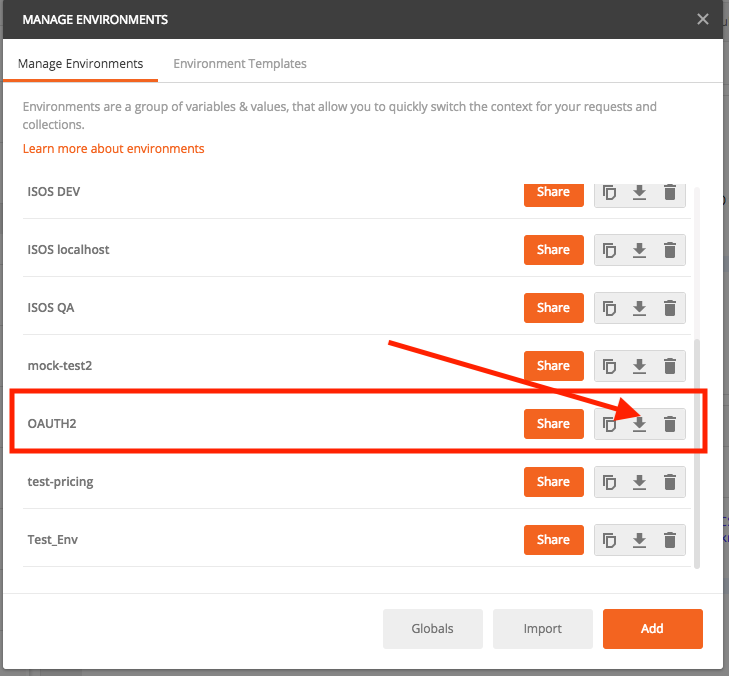
Export Environment Variables

client the tool picture on the top-right of the gui, find the collection, click the download button, as shown in the following picture:
In my cases, for the demo purpuse, I save the two files in the Download directory.
-rw-------@  1 gl17  staff   3.4K Jan 27 12:34 oauth2-demo.postman_collection.json
-rw-------@  1 gl17  staff   653B Jan 27 12:35 OAUTH2.postman_environment.json

Run Collection From Command Line

The following are the command lines:
gl17@GaryLiu17sMBP:~/Downloads$ newman run oauth2-demo.postman_collection.json  -e OAUTH2.postman_environment.json --insecure 
newman

oauth2-demo

→ username&password
  POST https://localhost:8082/external/access_token?grant_type=password&username=max&password=mule [200 OK, 374B, 402ms]
  ✓  access_token is not null
  ✓  token_type == bearer

→ https://localhost:8082/external/validate?access_token=3URNgv-o3Tu9pP9WNfEhewlrBba7CsUfwJM1nZYYq8n7SlhxWq5E13wMy2ZeOcFx2q4edPSgG7u61Hg3_rFSpQ
  GET https://localhost:8082/external/validate?access_token=raJ1KXUBR4GfbVXNBFHNcAnNUQgQ34wcZ_jo0KODNdUmX4N4Th279THfZNPkCEmKQs2mOng9zcX97DMJtIsl-A [200 OK, 171B, 5ms]
  ✓  client_id is not null
  ✓  access-token-password is not null
  ✓  Status code is 200

┌─────────────────────────┬──────────┬──────────┐
│                         │ executed │   failed │
├─────────────────────────┼──────────┼──────────┤
│              iterations │        1 │        0 │
├─────────────────────────┼──────────┼──────────┤
│                requests │        2 │        0 │
├─────────────────────────┼──────────┼──────────┤
│            test-scripts │        2 │        0 │
├─────────────────────────┼──────────┼──────────┤
│      prerequest-scripts │        0 │        0 │
├─────────────────────────┼──────────┼──────────┤
│              assertions │        5 │        0 │
├─────────────────────────┴──────────┴──────────┤
│ total run duration: 529ms                     │
├───────────────────────────────────────────────┤
│ total data received: 345B (approx)            │
├───────────────────────────────────────────────┤
│ average response time: 203ms                  │
└───────────────────────────────────────────────┘
gl17@GaryLiu17sMBP:~/Downloads$ 

That is it all. Pretty simple and straight forward.

Summary

In this post, I have covered the following topics:

  • Procedures to test RESTful API using postman and newman utilities.
  • Simple syntax on how to write test javascripts

Saturday, December 16, 2017

Mule Dev Tricks: Dataweave Working With XML Data

The Use Case

In my earlier post, I have explained the tricks using xpath3() to extract data from xml data. In this post I will demonstrate a use case to extract data using Dataweave.

Here is the input data (I omitted the not-interesting xml data:
...
            
                        
                            anshul.gupta277@gmail.com


                                        836cf00ef5974ac08b786079866c946f
                                        HOME


                            sudeshna.nanda@tcs.com


                                        1f27f250dfaa4724ab1e1617174281e4
                                        WORK


...

The desired output is an arraylist:

[
     {
         email=anshul.gupta277@gmail.com, 
         wid=836cf00ef5974ac08b786079866c946f, 
         type=HOME
     }, 
     {
         email=sudeshna.nanda@tcs.com, 
         wid=1f27f250dfaa4724ab1e1617174281e4, 
         type=WORK
     }
]

The Solution

The following is the solution:
%dw 1.0
%output application/java
%namespace ns0 urn:com.workday/bsvc
---
payload.ns0#Get_Workers_Response.ns0#Response_Data.*ns0#Worker.ns0#Worker_Data.ns0#Personal_Data.ns0#Contact_Data.*ns0#Email_Address_Data
map {
 email: $.ns0#Email_Address,
 wid: $.ns0#Usage_Data.ns0#Type_Data.ns0#Type_Reference.*ns0#ID[?($.@ns0#type == "WID")][0],
 type: $.ns0#Usage_Data.ns0#Type_Data.ns0#Type_Reference.*ns0#ID[?($.@ns0#type == "Communication_Usage_Type_ID")][0]
}

The Key Learning Points

  1. Make array with wildcard *: ns0#Contact_Data.*ns0#Email_Address_Data
  2. Get expect element using: ns0#ID[?($.@ns0#type == "WID")][0]
  3. Remember: access attribute of a xml element using @

Anypoint Studio Error: The project is missing Munit lIbrary to run tests

Anypoint Studio 7.9 has a bug. Even if we following the article: https://help.mulesoft.com/s/article/The-project-is-missing-MUnit-libraries-...